Connecting an AI Assistant (Claude or ChatGPT)
Add NiveshBuddy to Claude or ChatGPT so you can ask, in plain language, about your own strategies, simulations and scheduled trades. How to connect each one, how to check and remove a connection, and why the answers are the assistant's, not advice.
What You’ll Learn
By the end of this article, you’ll understand:
- What an AI assistant can see, and what it can't do
- How to connect Claude or ChatGPT
- How to disconnect, and when a connection drops off
- Why its answers aren't advice
Goal
By the end of this walkthrough, an AI assistant you already use, Claude or ChatGPT, will be able to answer questions about your NiveshBuddy account in plain language. Instead of opening each simulation to see how it is doing, you can ask.
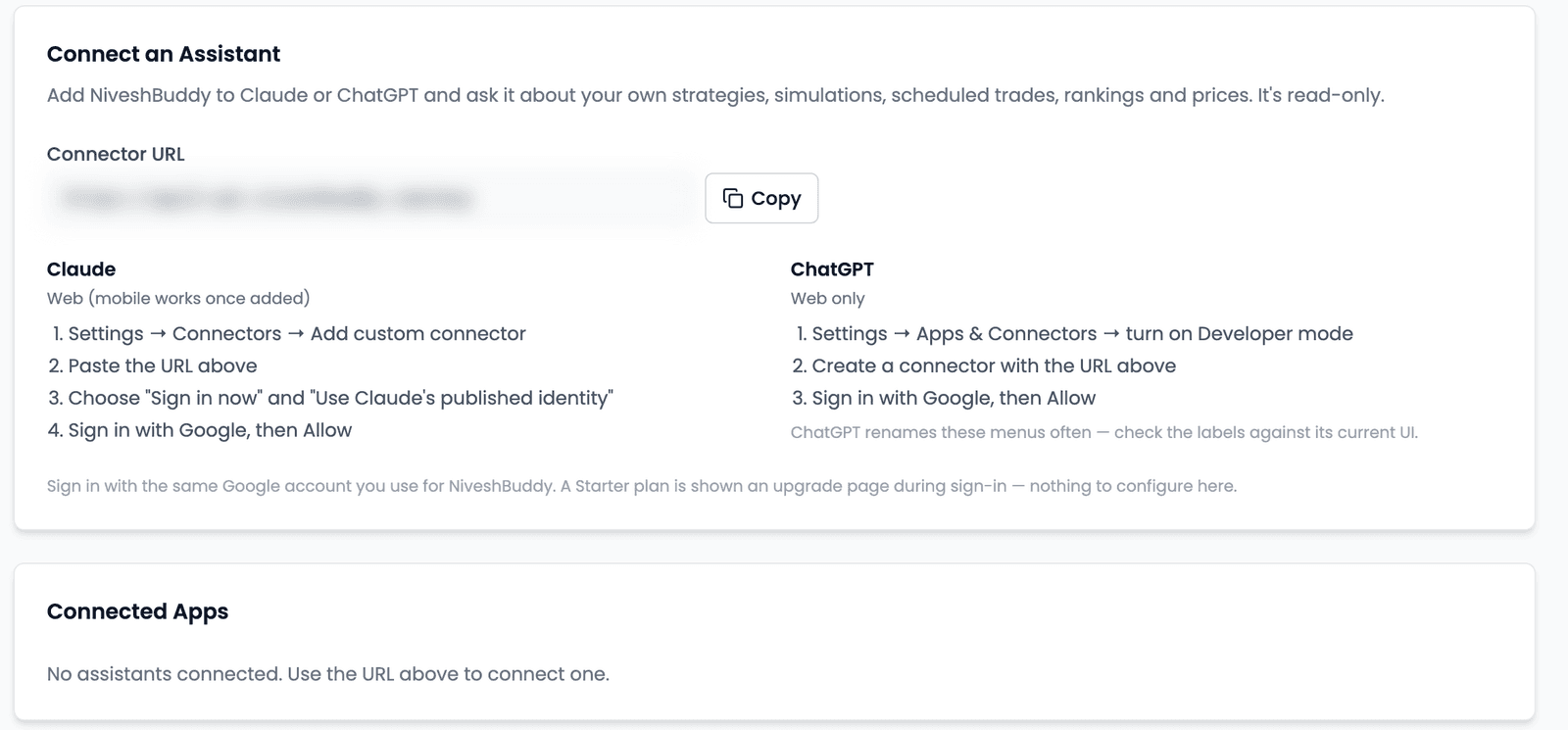
The app describes it in one line on the setup card: "Add NiveshBuddy to Claude or ChatGPT and ask it about your own strategies, simulations, scheduled trades, rankings and prices. It's read-only."
Two parts of that sentence matter most. Your own means the assistant sees the strategies and simulations in your account, along with the rankings and prices they draw on. Read-only means it can look but not act. A connected assistant cannot place trades, change a strategy or reject a scheduled trade. Everything you do in NiveshBuddy, and everything you do in your own brokerage account, stays with you.
Setting it up takes a few minutes. You copy one address from NiveshBuddy, paste it into the assistant, and sign in with Google to allow the connection.
Before you start
You will need
- A NiveshBuddy plan that includes AI Connectors (see Pricing). The Connect an Assistant card appears only on those plans.
- A Claude or ChatGPT account. Claude can be set up on the web; ChatGPT must be set up on the web.
- The same Google account you use to sign in to NiveshBuddy. You will sign in with it during setup.
If you are not sure what your plan includes, the Pricing page lists which plans include AI Connectors.
Steps
1. Copy your Connector URL
In NiveshBuddy, open Account and choose the AI Connectors tab. On a plan that includes the feature, the first card is Connect an Assistant. Under it is a field labelled Connector URL with a Copy button beside it.
Press Copy. The button briefly changes to Copied, and the address is on your clipboard. Always copy it from this page rather than typing it out or reusing one from somewhere else.
2a. Connect Claude
Claude is set up on the web. Once it has been added there, the connection also works in Claude's mobile app. In Claude:
- Go to Settings → Connectors → Add custom connector.
- Paste the Connector URL you copied.
- Choose "Sign in now" and "Use Claude's published identity".
- Sign in with Google, then Allow.
When you sign in, use the same Google account you use for NiveshBuddy. The setup card asks for exactly this.
2b. Connect ChatGPT
ChatGPT is set up on the web only. In ChatGPT:
- Go to Settings → Apps & Connectors and turn on Developer mode.
- Create a connector with the Connector URL you copied.
- Sign in with Google, then Allow.
NiveshBuddy's own setup card carries a warning worth repeating: "ChatGPT renames these menus often — check the labels against its current UI." If a menu name above doesn't match what you see, look for the closest equivalent in ChatGPT's current settings. The order of steps is what matters: enable developer mode, create the connector with the URL, then sign in and allow.
What to review
Go back to Account → AI Connectors in NiveshBuddy. Below the setup card is Connected Apps, which lists every assistant connected to your account. Each row shows a line like "Connected on {date} · Last active {time}".
Read Last active carefully. It is the last time the assistant signed in to NiveshBuddy, not the last time you asked it a question. An assistant can answer several questions without that time changing, so don't use it as a log of your conversations.
Each row has a Disconnect button. Pressing it asks you to confirm first: "{App} will lose access to your NiveshBuddy data. It can be reconnected any time, if your plan includes AI connectors." Confirm, and the assistant can no longer read your account.
A few things about this list are easy to miss:
- Unused connections may drop off. A connection left unused for about 30 days may disappear from the list on its own. If an assistant you connected long ago is missing, that is the likely reason. Connect it again with the same steps.
- Signing out does not disconnect. Signing out of NiveshBuddy leaves every connected assistant connected. To stop an assistant reading your data, disconnect it here.
- You can always disconnect. The AI Connectors tab and the Connected Apps list stay visible on every plan. If your plan changes to one without AI Connectors, the setup card goes away, but you can still see and remove any assistant connected earlier.
It is worth opening this list now and then, especially if you have tried both assistants. Remove anything you no longer use.
Expected outcome
Once connected, open a new conversation in the assistant and ask about your account as you would ask a colleague. Questions like these suit it well:
- "How is my simulation doing since it started?"
- "Which trades are scheduled across my simulations, and when do they run?"
- "Summarise the rules of my momentum strategy."
- "What was the latest closing price of each stock my simulation holds?"
These are questions about what is already in your account. The assistant reads your data and puts it into words, which can save you a few clicks.
The answers are the assistant's, not NiveshBuddy's
What you read in the conversation is written by Claude or ChatGPT, not by NiveshBuddy. It is not investment advice, and the assistant can be wrong: it may misread a figure, mix up two simulations or state something with more confidence than the data supports. Check anything that matters against the app itself.
The connection is read-only and cannot place trades. Don't use it to ask what to buy or sell. A strategy's rankings are the output of its rules, not a recommendation, and an assistant restating them doesn't make them one. Your investment decisions remain yours.
Troubleshooting and next step
I don't see the Connect an Assistant card.
The card appears only on a plan that includes AI Connectors. The AI Connectors tab and the Connected Apps list are shown on every plan, so seeing the tab without the card usually means your current plan doesn't include the feature. Check Pricing for the plans that do.
Signing in showed an upgrade page instead of Allow.
The account you signed in with is on a plan that doesn't include AI Connectors. Check Pricing for the plans that do. Also make sure you chose the same Google account you use for NiveshBuddy, as the setup card asks.
ChatGPT's menu names don't match the steps.
ChatGPT renames these menus often, and NiveshBuddy's setup card says so. Look for the closest equivalents in its current settings: turn on developer mode, create a connector with the Connector URL, then sign in with Google and allow.
How do I reconnect after disconnecting?
Follow the same steps again: copy the Connector URL from Account → AI Connectors, add it in Claude or ChatGPT, and sign in with Google. You can reconnect any time, as long as your plan includes AI Connectors.
Once an assistant is connected, a useful next step is to ask it about one simulation you already know well, and compare its answer with what the app shows. That tells you quickly how far to rely on it.