Notifications, Push & Installing the App
NiveshBuddy can tell you when a backtest is ready, a simulation needs attention or a payment goes through, by email, by push, or both. Which switches you control, how to turn on push on each kind of device, and how to put NiveshBuddy on your phone's Home Screen.
What You’ll Learn
By the end of this article, you’ll understand:
- Which notifications NiveshBuddy sends, and which can't be turned off
- How to turn on push on a phone or computer
- Why iPhone needs Add to Home Screen first
- What links and unsubscribe pages do
What NiveshBuddy tells you
A lot of what happens in NiveshBuddy happens while you are away. A backtest takes a while to finish, and a simulation moves forward with the market whether or not you are looking. Notifications exist so you don't have to keep checking. They tell you when something is ready, and they tell you when something needs your attention.
They come from four places.
Backtests
When a backtest is ready to read, and when one has failed.
Simulations
When a simulation is ready, when one fails to start, when a portfolio edit fails, and when one is paused because it has run out of Simulation credits.
Experiments
When an experiment is ready, when it has failed, and when it has been cancelled.
The Nightly Digest and billing
A once-a-night summary that opens on the Action Center, plus messages about payments and your subscription.
Each of these can reach you by email, by push notification, or both. NiveshBuddy decides which channel each one uses. What you decide is which channels you are willing to receive. That is the next section.
Choosing your channels
Your settings live under Account → Notifications, in a section called Notification Preferences. Its Channels group has three switches. Email Notifications and Nightly Digest are on when you first sign up. Push Notifications is off: push reaches a device only after you register that device and turn push on yourself, as described below.
- Email Notifications: "Receive backtest, simulation and account updates by email."
- Push Notifications: "Get alerts when your backtests complete, simulations encounter issues, or an action needs your attention."
- Nightly Digest: "A nightly summary across both channels, without muting anything else."
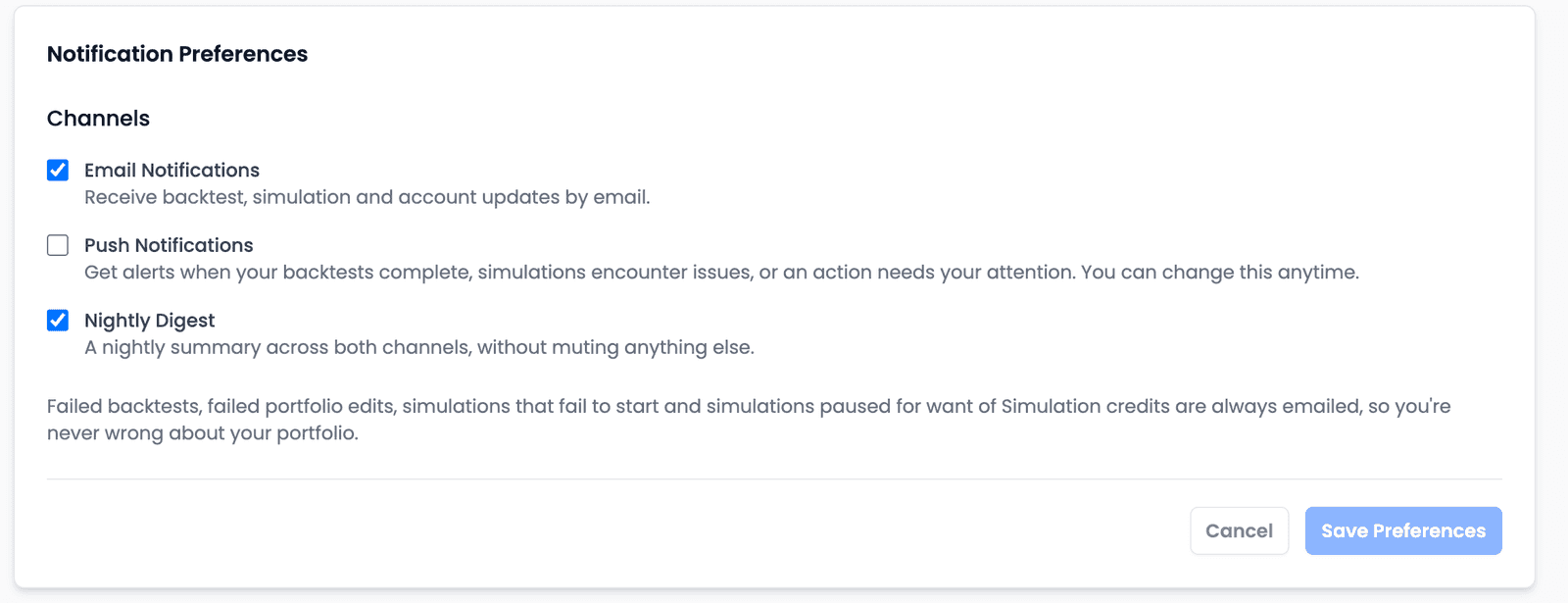
Nothing changes until you press Save Preferences. If you flip a switch and leave the page, the old setting still applies.
Some emails are sent whatever the switches say. The settings page lists them: "Failed backtests, failed portfolio edits, simulations that fail to start and simulations paused for want of Simulation credits." Each of these means work you started has stopped. So turning off Email Notifications quietens the routine messages, but it does not silence these.
Turning on push
A push notification is a short alert that appears on your phone or computer even when NiveshBuddy isn't open. Push is off by default for every new account. Nothing is pushed to a device until you register that device and enable push on it. It needs a little more setup than email, because your browser has to agree to it, and the steps depend on the device.
| Android phone or tablet | iPhone & iPad | Computer | |
|---|---|---|---|
| First | Nothing extra | Add NiveshBuddy to the Home Screen (Safari → Share → Add to Home Screen), then open it from there | Nothing extra |
| From Settings | Tick Push Notifications, allow it, then Save Preferences | The same, inside the Home Screen app | Tick Push Notifications, allow it, then Save Preferences |
| From the Dashboard banner | Tap Enable notifications; no Save needed | Shown the Add to Home Screen steps instead | No banner on a computer |
In Settings, the order matters. Ticking Push Notifications is what makes your browser ask for permission. NiveshBuddy only ever asks from that tap, never by itself in the background. Once you allow it, NiveshBuddy registers this device and says so: "This device is registered. Save your changes to turn push notifications on." Then press Save Preferences.
Push is set up per device. Turning it on with your phone registers your phone. Your laptop is a separate device, so it needs the same steps.
On a phone or tablet, there is a shorter route. The Dashboard may show a banner offering Enable notifications. Tapping it asks for permission and turns push on straight away, with no Save needed.
On iPhone and iPad, there is one step first. Apple only lets push work for a site that has been added to the Home Screen. So in Safari, tap Share, choose Add to Home Screen, and then open NiveshBuddy from the new icon. Turn on push from there, not from a Safari tab.
Two things hold on every device. Email still arrives either way, so push is an extra channel, never a replacement. And push messages carry no amounts or names. A notification on your lock screen tells you something is ready or needs a look. The details stay inside NiveshBuddy, where you sign in to see them.
Installing the app
NiveshBuddy runs in your browser, but on a phone or tablet you can also put it on your Home Screen so it opens like an app.
The same Dashboard banner handles this. It appears only on touch devices (phones and tablets) while you are signed in, and at most once per session. Depending on your device, it offers Enable notifications, Install app, or both. Install app puts NiveshBuddy on your Home Screen. On an iPhone, Safari doesn't allow a site to do that by itself, so the banner shows the Add to Home Screen steps instead for you to follow.
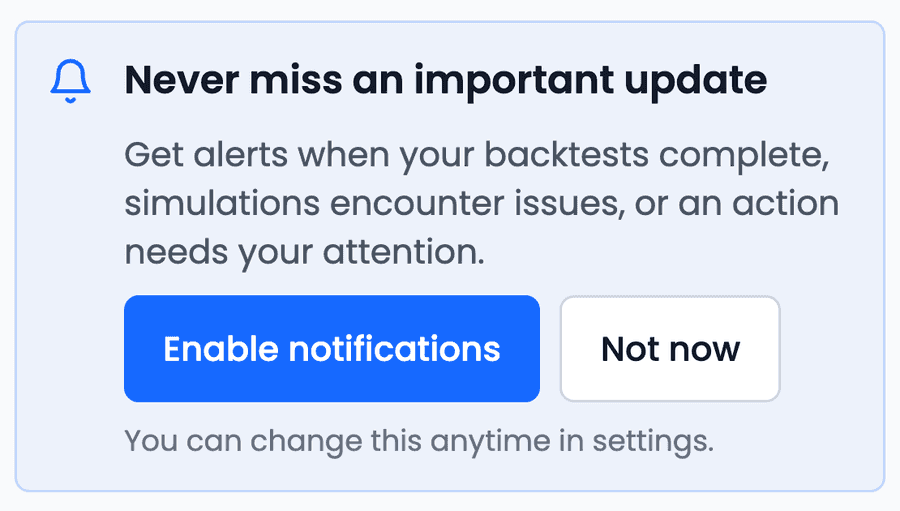
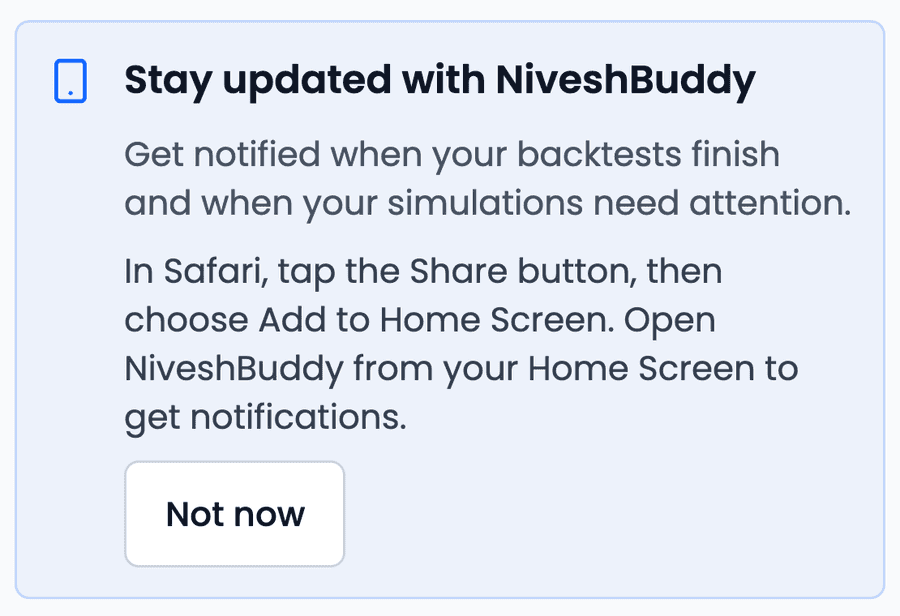
If you don't want it yet, tap Not now (or Done). The banner then stays out of the way for 30 days. It is also hidden if notifications are blocked for the site.
There is no in-app install button on a computer. On a laptop or desktop, NiveshBuddy is simply the website, and you turn on push from Settings as described above.
When push stops working
If push notifications stop arriving, the settings page on that device is where to check.
Checking a device's push status
When push is working, Settings shows "Push notifications are set up on this device", along with a "Last checked with server" time and a Re-check button. Re-check asks the server whether this device is still registered and tells you the answer.
If the page says "Notifications are blocked for this site…", the permission was refused somewhere outside NiveshBuddy, and only you can give it back. Allow notifications for the site in your browser or device settings, then reload the page and turn push on again.
Links in emails, and unsubscribing
Every link in a notification opens the page it is about. A finished backtest opens its Strategy Results, and a simulation opens its Simulation Results. An experiment opens that experiment, and the Nightly Digest opens the Action Center. Payment messages open the payment, Billing or Pricing. If you are signed out, the link takes you through sign-in first and then on to the page.
Every email also carries a one-click unsubscribe link. It works without signing in, which is the point: you can stop the emails from any inbox, even one you rarely use. It turns off Email Notifications for your account — the few emails that are always sent, listed above, still arrive. The page it opens confirms "You won't get NiveshBuddy emails any more" and offers a Manage notification settings button. Use that button if you'd rather switch off some channels than all of them.
An unsubscribe link that has already been used, or has expired, says so: "This link is no longer valid… Nothing has been changed." Your settings are exactly as they were. To change them, go to Account → Notifications.
Common questions
Why can't I find push on my iPhone?
On iPhone and iPad, push only works once NiveshBuddy is on your Home Screen. In Safari, tap Share, then Add to Home Screen, open NiveshBuddy from the new icon, and turn on push from there.
Can I turn off every email?
Turning off Email Notifications quietens the routine emails, but Settings still emails you about failed backtests, failed portfolio edits, simulations that fail to start and simulations paused for want of Simulation credits. The one-click unsubscribe link in each email does the same thing — it turns Email Notifications off — so those few still arrive either way.
I enabled push but nothing arrives
Open Account → Notifications on that device. If it says notifications are blocked, allow them in your browser or device settings and reload. If it says push is set up, press Re-check to see whether the device is still registered. Also check that you pressed Save Preferences after enabling it in Settings.
Can I install NiveshBuddy on my computer?
There is no in-app install button on a computer. Install app is offered on phones and tablets only. On a computer you can still turn on push from Account → Notifications.
Key takeaways
- NiveshBuddy notifies you about backtests, simulations, experiments, the Nightly Digest and billing, and it decides which channel each one uses.
- Email Notifications and Nightly Digest are on by default; Push Notifications is off until you register a device and enable it. Changes apply only after Save Preferences.
- Failed backtests, failed portfolio edits, simulations that fail to start and simulations paused for Simulation credits are always emailed.
- Push is set up per device: tick Push Notifications and allow it, or tap Enable notifications on the phone banner.
- On iPhone and iPad, add NiveshBuddy to the Home Screen first and turn on push from there.
- Every email has a one-click unsubscribe link that works without signing in, and push messages never carry amounts or names.