
Scheduled Trades & the Action Center
Before each rebalance, a simulation lists the trades its strategy has decided on. They run on their own at the day's close; your only decision is whether to reject any. What they are, when they appear, and where to see them all at once.
What You’ll Learn
By the end of this article, you’ll understand:
- Where scheduled trades come from, when they run, and why doing nothing lets them go ahead
- How Reject, Reject all and Reset work
- Why quantity and price are estimates, and what fills instead
- Why a first run is all buys and later runs show only changes
What a scheduled trade is
A Simulation — a paper portfolio run with virtual money — follows its strategy forward through the live market. At every rebalance the strategy re-runs its rules and decides what to buy and what to sell. Those decisions are scheduled trades: the strategy's own trades, listed before they happen.
The important thing to know is the default. A scheduled trade runs on its own. You do not approve it, and there is nothing to confirm. If you do nothing, it executes at that day's closing price and the simulation moves on.
What you can do is reject one you don't want — and that is the only decision the screen asks of you. Nothing here places an order at a broker. A simulation is virtual from start to finish; whatever you do in your own account is separate, and remains your decision.
When you'll see them
Scheduled trades appear before every rebalance, so how often you see them depends on the strategy: a monthly strategy brings a batch once a month, a daily one every trading day. What the batch contains depends on where the simulation is in its life.
The first run: every holding is a buy
A new simulation starts in cash, so its first batch buys the whole portfolio at once — one buy for every holding the strategy targets. A strategy holding fifteen stocks opens with fifteen buys and no sells.
Later runs: only what changed
From then on, a batch lists only the differences: sells of holdings that slipped past the Exit Rank or hit a stop loss, and buys of the stocks replacing them. Many rebalances change only a few positions, and some change none.
So a long list on day one is not a sign of a busy strategy. It is the portfolio being built. From the second batch onwards, the list is a better picture of how actively the strategy really trades.
How a rebalance plays out
A scheduled trade is decided on one day and executed on the next trading day the strategy rebalances. The gap is deliberate: the rules only ever act on a closing price they have already seen.
One rebalance in a simulation
- Signal at the closeThe strategy reads the previous trading day's end-of-day data and decides what to trade
- Scheduled Trades appearListed on the simulation and in the Action Center, with the date they will run
- You may rejectOptional — anything you leave alone goes ahead
- They run at the closeExecuted at that day's closing price; the portfolio updates after the day's market update
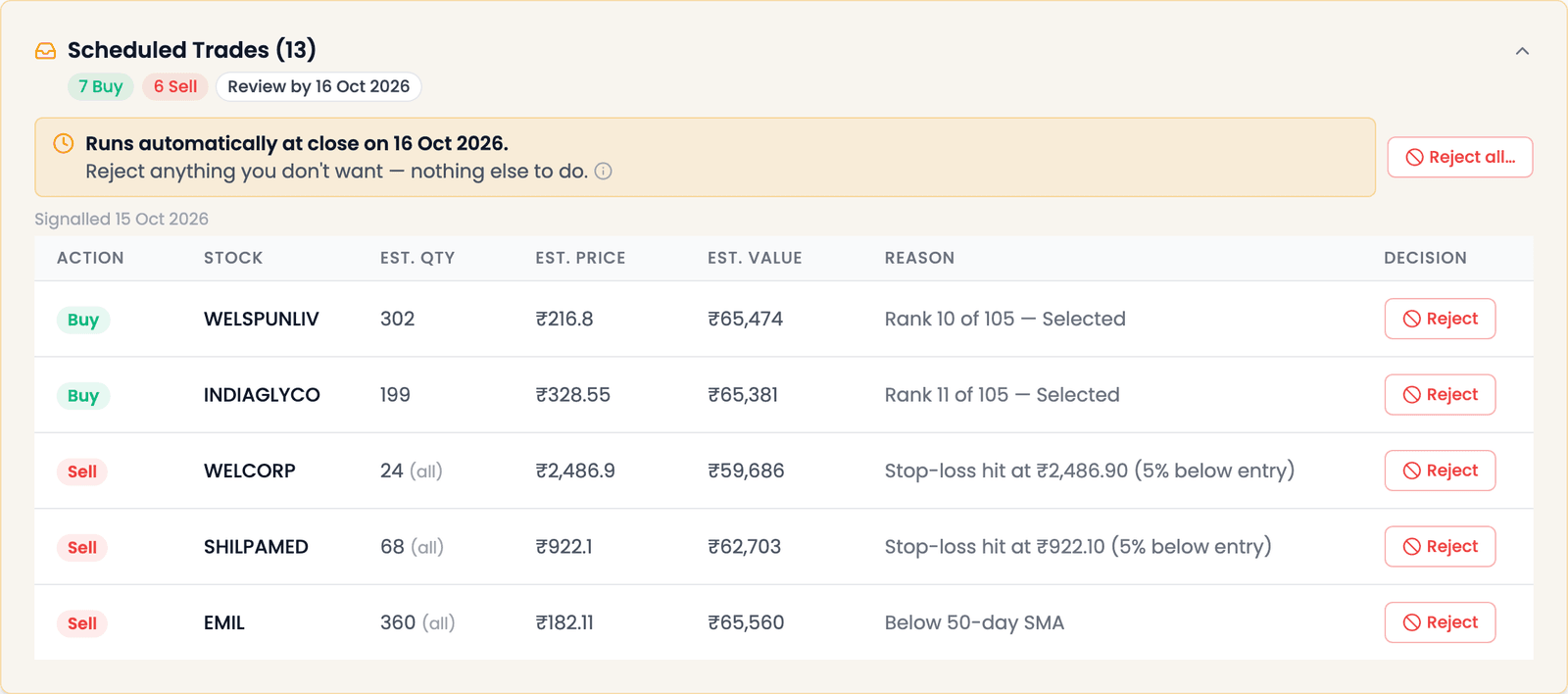
Here is how that looked for a hypothetical demo simulation, Broad Market Daily Momentum Simulation, a few days after it started. Its strategy rebalances daily and holds fifteen stocks. Its first run had been fifteen buys. By 15 October, five holdings had fallen 5% below their entry price, triggering the stop loss, and one had dropped below its 50-day moving average. So the strategy read that day's close and scheduled six sells, plus seven buys to bring the portfolio back to fifteen holdings. The section says when in two lines: "Signalled 15 Oct 2026" and "Runs automatically at close on 16 Oct 2026. Reject anything you don't want — nothing else to do."
Reading a scheduled trade
Each trade is one row, and every column is there to help you decide whether to leave it alone.
| Column | What it tells you |
|---|---|
| Action | Buy or Sell |
| Stock | The company |
| Est. Qty | How many shares the strategy expects to trade; a sell shows (all), because a sell closes the whole holding |
| Est. Price · Est. Value | The estimate the quantity was worked out from, and the resulting amount |
| Reason | Why the strategy chose it. A buy reads like "Rank 10 of 105 — Selected": tenth among the 105 stocks that passed its filters. A sell names its exit, such as "Stop-loss hit at ₹2,486.90 (5% below entry)" or "Below 50-day SMA" |
| Decision | The Reject button |
At the top, chips summarise the batch — the number of buys and sells, and a Review by date, which is the last day you can reject anything.
What you can do
| You… | What happens |
|---|---|
| Do nothing | The trade runs at that day's closing price. This is the default, and for most trades the expected outcome |
| Reject a trade | It will not run. It moves to a collapsed Rejected list under the section |
| Reject all… | Every trade in the batch is skipped, after a one-line confirmation: "Skip all N trades in this rebalance?" |
| Reset a rejected trade | It goes back to the schedule and will run after all. Reset is on the simulation's own page, not in the Action Center |
Rejecting one trade moves it out of the schedule, and the heading's count drops by one. Here, one buy has been rejected, and Reject all… has been pressed, so it is asking for confirmation before it does anything:
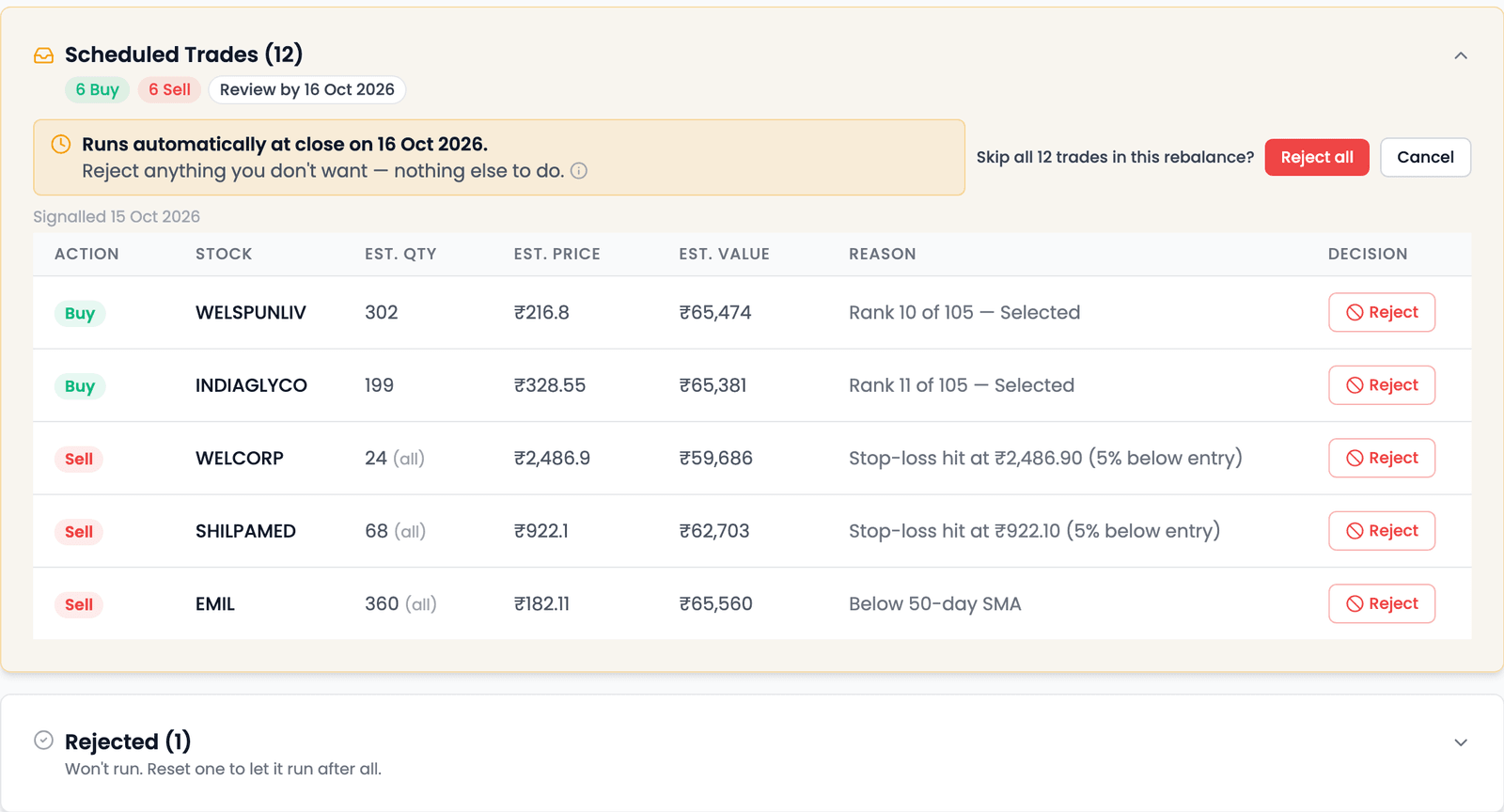
Expanding Rejected shows the trade, marked Rejected, with its Reset button:

That is the whole list. There is no Accept button, because there is nothing to accept — a trade you leave alone already goes ahead. And there is no way to edit a quantity or price here, for the reason explained below under What a scheduled trade is not.
The Action Center
Each simulation shows its own scheduled trades on its Overview tab. The Action Center shows them for every running simulation in one place — a single page to check before each close.
- Where it is: on a computer, the inbox icon at the top right of the app, which carries a count when trades are waiting; on a phone, the Actions tab in the bottom bar. The Dashboard also shows a Scheduled Trades count and an Action Center card.
- What it shows: one group per simulation, each with its number of trades, its Review by date, a View Simulation link and its own Reject all….
- Narrowing it down: filter to All, Buys or Sells, or pick one simulation from the list.
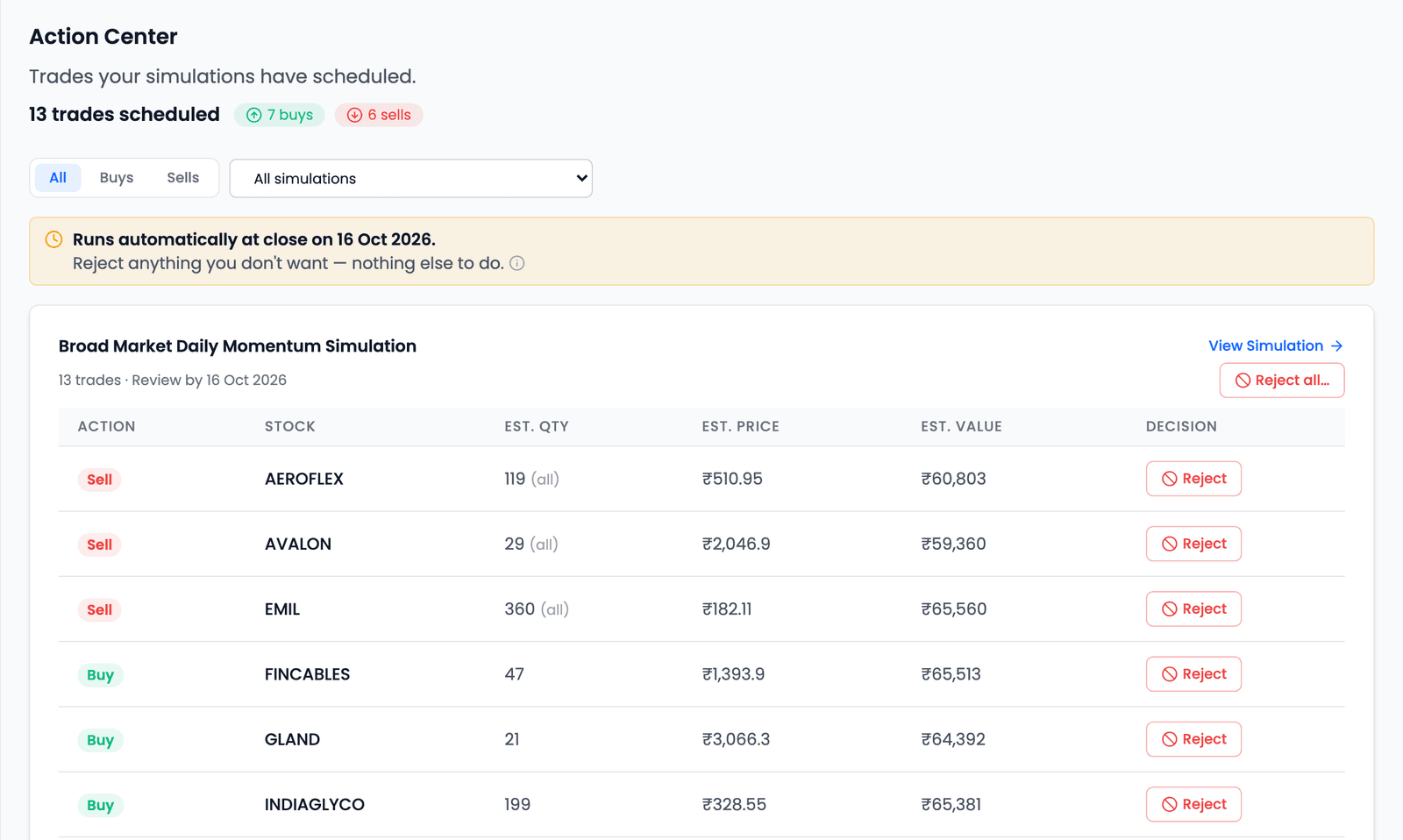
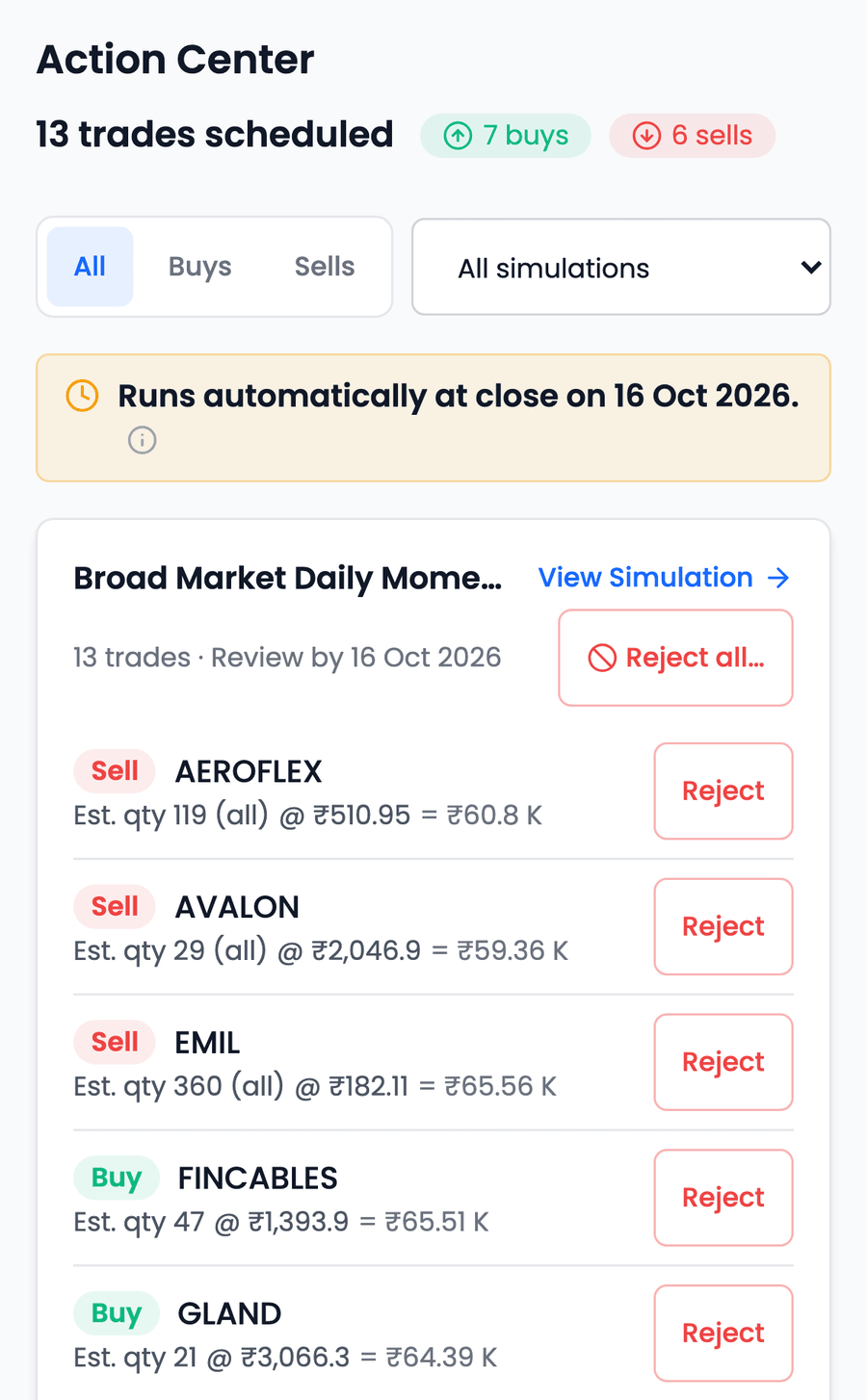
When nothing is waiting, it says so plainly — "No trades scheduled" — and new trades appear there before they execute.
What a scheduled trade is not
An estimate, not an order
The quantity and price on a scheduled trade are estimates. The trade fills at that day's closing price, which can differ from the estimate, so the quantity the simulation ends up holding can differ slightly too. Nothing executes intraday, and there is no guaranteed price.
It is also not an instruction to you. The simulation records what the strategy would do; it never sends anything to a broker. If you follow the strategy in your own account, your real fills will rarely match the simulation's exactly — a different price, a different quantity, an order you didn't place. You don't fix that by editing the scheduled trade. Once the trade has run, you can record what you actually did against the holding in the simulation, so its record stays aligned with yours. That is covered in its own guide to recording your real trades in a simulation.
Using it well
Rejecting is the one way to override your strategy here, so it is worth treating as an exception rather than a routine. Each reject means the simulation no longer shows what your rules would have done — it shows what your rules did after you stepped in. If you reject something, note why. Over a few rebalances, those notes tend to say more about your own habits than about the strategy.
Give the simulation several rebalances before drawing conclusions from it. A single batch — especially the first, which is all buys — says very little about how the strategy behaves over time. None of this is advice on what to trade; the decisions in your own account remain yours.
Common questions
What happens if I do nothing?
The trades run on their own at that day's closing price. Doing nothing is the default, and it means the simulation follows your strategy exactly.
Can I change the quantity or the price of a scheduled trade?
No. Both are estimates; the trade fills at the day's closing price. If your real-world trade differed, you record what you actually did against the holding after the trade has run.
I rejected a trade by mistake. Can I undo it?
Yes, until it would have run. Open the simulation, expand the Rejected list under Scheduled Trades and press Reset on the trade. Reset is on the simulation's own page, not in the Action Center.
Why are there so many trades on the first day?
A new simulation starts in cash, so its first batch buys every holding the strategy targets at once. Later batches list only the changes.
Does a scheduled trade place an order with my broker?
No. A simulation is a paper portfolio run with virtual money. Nothing in it reaches a broker, and what you do in your own account is your decision.
Key takeaways
- Scheduled trades are your strategy's own decisions for the next rebalance, listed before they happen.
- They run on their own at that day's closing price — doing nothing means they go ahead.
- The only decision is to reject: Reject one, Reject all, or Reset a rejected trade to let it run after all.
- The signal comes from the previous trading day's close; the trade executes at the rebalance day's close, never intraday.
- Quantity and price are estimates; if your real fill differed, record it against the holding after the trade has run.
- A first run is all buys because the portfolio starts in cash; later runs list only what changed.
- The Action Center gathers every simulation's scheduled trades in one place — the inbox icon on a computer, the Actions tab on a phone.