
Recording Your Real Trades in a Simulation
If you follow a simulation at your broker, your real fills will rarely match it exactly. Five tools let you record what you actually did, without placing orders or changing the strategy, so the simulation stays a faithful record of your portfolio.
What You’ll Learn
By the end of this article, you’ll understand:
- Why a simulation drifts from what you actually did at your broker
- Which of the five actions fits each situation
- How to record a different fill with Edit Position, and what it does to cash
- Where to check that a correction was applied
- How Edit Settings differs from recording a trade
Goal
A simulation records what your strategy would do, at each day's closing price, with virtual money. If you also follow the strategy in your own broker account, what actually happens there will drift from it: you paid a slightly different price, bought a few shares fewer, skipped a stock, or added one the strategy didn't pick.
The tools in this guide let you record what you actually did, so the simulation keeps matching your real portfolio. None of them places an order, and none of them changes the strategy. Each screen says so in one line: "This reconciles your actual broker execution. It does not change the strategy."
The goal of this walkthrough is to correct one holding to match a real fill, check that the correction landed, and know which of the five tools fits each other case.
Before you start
Open the simulation's Active Portfolio tab. Every holding has a menu at the end of its row, and the list has an Add Position button above it.
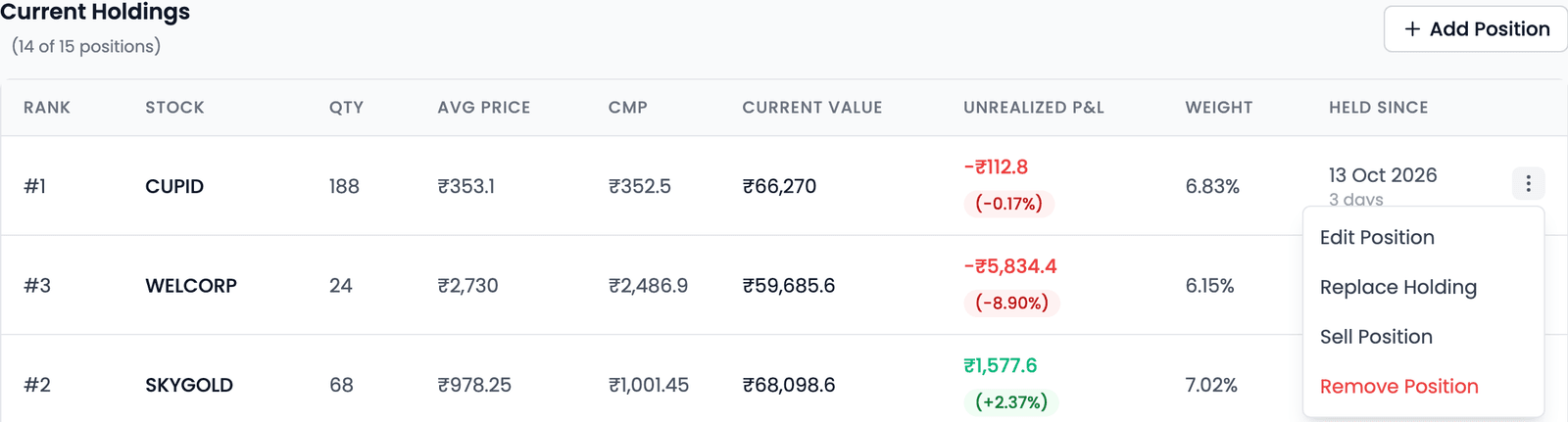
Two things to know first:
- Any open position can be adjusted, at any time. It doesn't matter which rebalance bought it. Adjustments are locked only when the simulation is Stopped or Completed, or while an earlier change is still being applied.
- A pill marks where a holding came from. Manual means you added it yourself; Restated means it was adjusted for a split or bonus. A holding with no pill came from the strategy.
The five actions
| Action | Use it when… | What it records |
|---|---|---|
| Add Position | You bought a stock the simulation doesn't hold | A purchase you already made: the stock, quantity and buy price. It is blocked when the portfolio is full or there isn't enough cash |
| Edit Position | Your real fill differed from the simulated one | The correct quantity and average price. Correcting the price moves cash by the difference |
| Sell Position | You sold a holding the simulation still holds | A sale of the whole holding, at your price |
| Replace Holding | You swapped one stock for another | The sale of one holding and the purchase of its replacement, in one step |
| Remove Position | A position was recorded by mistake | Nothing: it erases the entry as if it never existed |
Remove is not a sale
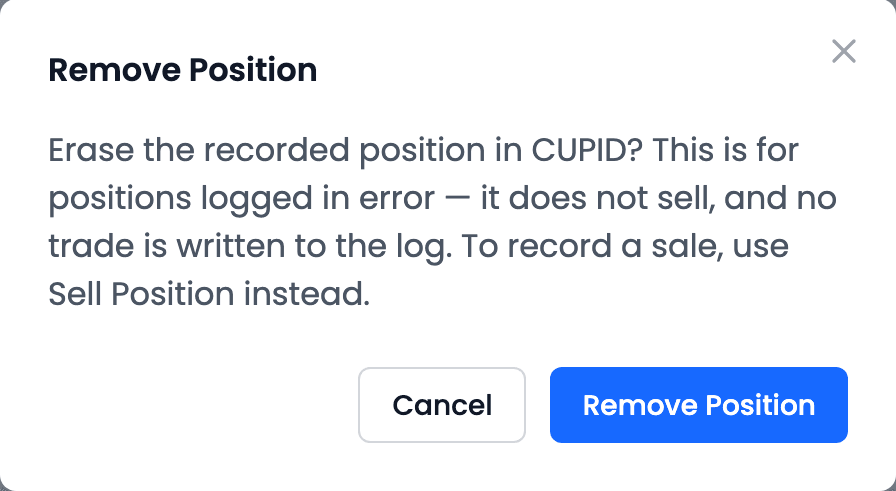
Remove Position is for a position logged in error. It doesn't sell anything and writes no trade to the log, so any gain or loss on it disappears from the record. The dialog says so: "This is for positions logged in error — it does not sell, and no trade is written to the log. To record a sale, use Sell Position instead."
Steps: recording a different fill with Edit Position
In a hypothetical demo, Broad Market Daily Momentum Simulation bought 301 shares of WELSPUNLIV at the close on 16 October, at ₹219.30. Suppose your own buy of the same 301 shares filled a little higher, at ₹219.85, as your broker's contract note shows. Here is how to record that.
- On Active Portfolio, open the menu at the end of the WELSPUNLIV row and choose Edit Position.
- Leave Quantity at 301, since you bought the same number of shares.
- In Avg Price, enter what you actually paid: 219.85.
- Optionally, add a Note that says where the figure came from, such as the contract note. It is kept with the trade.
- Check the summary before you save. It shows each change as before → after, the Cash effect and the Cash balance after.
- Press Save Changes.
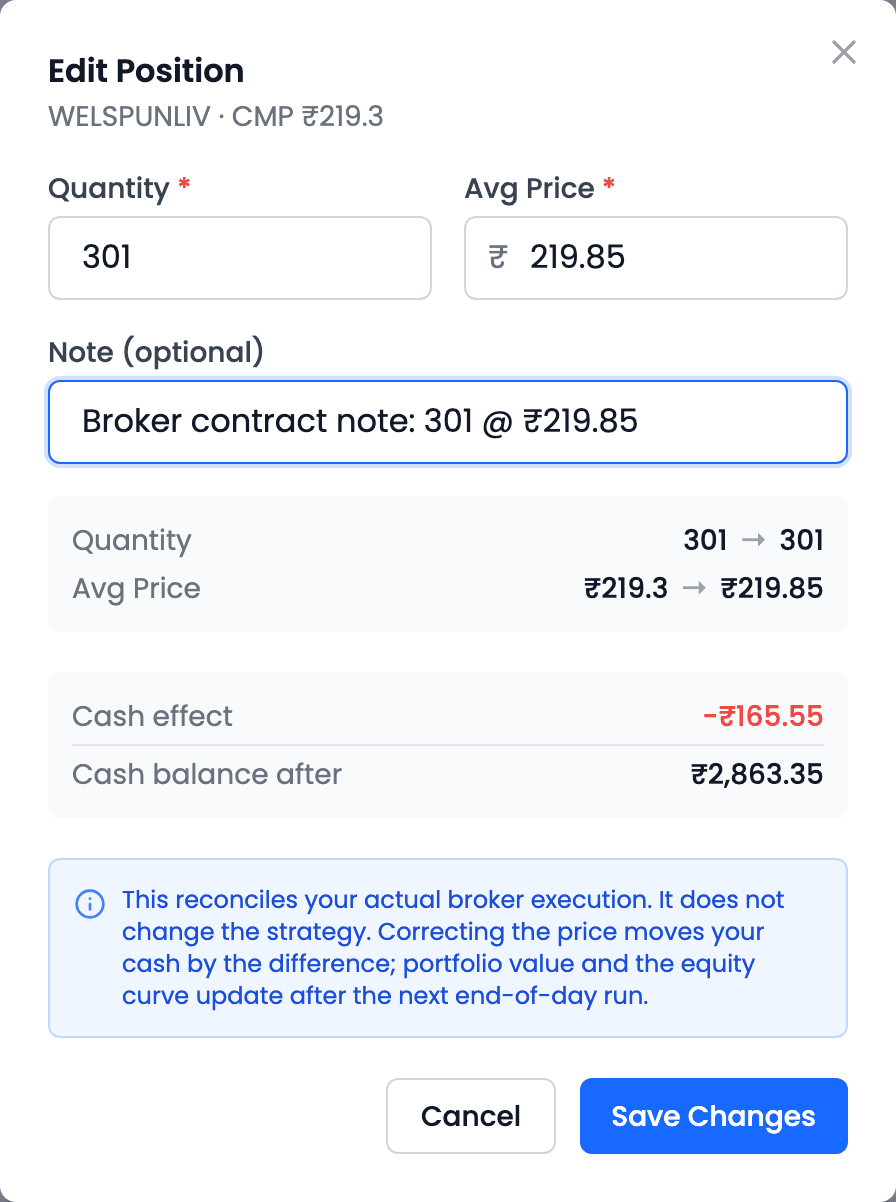
The cash effect is simple arithmetic: you paid ₹0.55 more per share on 301 shares, so ₹165.55 more left your cash. Had your fill been lower, the cash effect would be positive. Correcting the quantity works the same way in the dialog, and restates how many shares you hold.
What to review
Right after you save, the holding is marked Update submitted, and a banner at the top of the page says the change is being applied: "Recomputing. Your change has been accepted and is being applied to the portfolio. The figures below are from before the change." In the demo it was applied within a minute.

Once it has been applied, check three places:
-
Active Portfolio: the holding's Avg Price now reads ₹219.85, and its Unrealized P&L reflects the higher cost. The Cash Balance card has fallen by the cash effect.
-
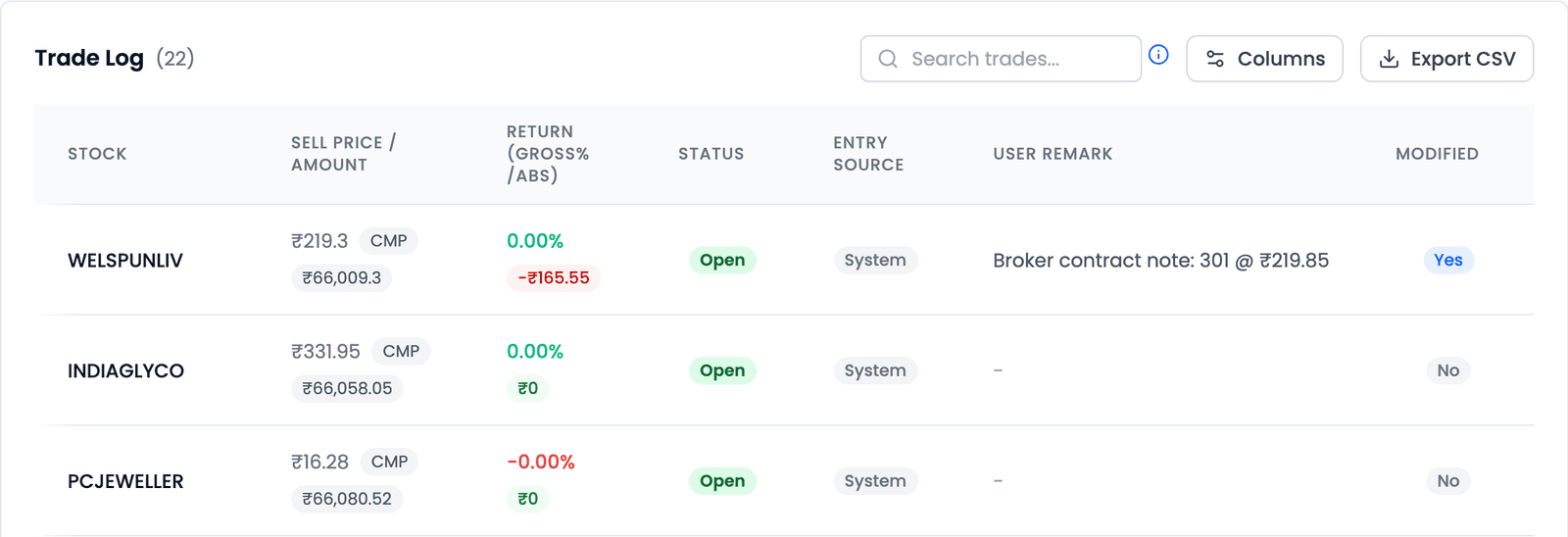
Trade Log: the trade's buy price is corrected, your note appears as its User Remark, and Modified reads Yes, so it is always clear which rows you have changed.
Your note travels with the trade -
Logs: the change is recorded in plain words, with your note.
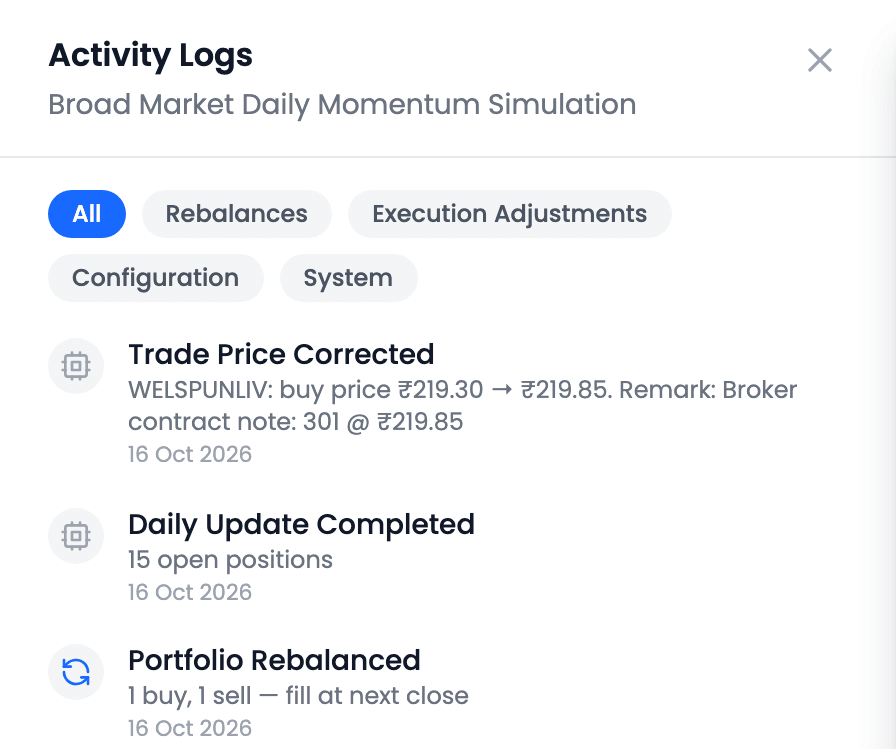
What changed, from what, to what
In the Cash Ledger, the original buy's entry now shows the corrected amount; the correction doesn't add a separate line. As the dialog says, Portfolio Value and the equity curve catch up after the next end-of-day run.
The other four, briefly
Add Position opens on the strategy's Latest Strategy Rankings, dated as of the latest market update, with All Universe beside it for any other stock. Pick the stock, enter the quantity and buy price, and check the cash summary underneath before you add it.
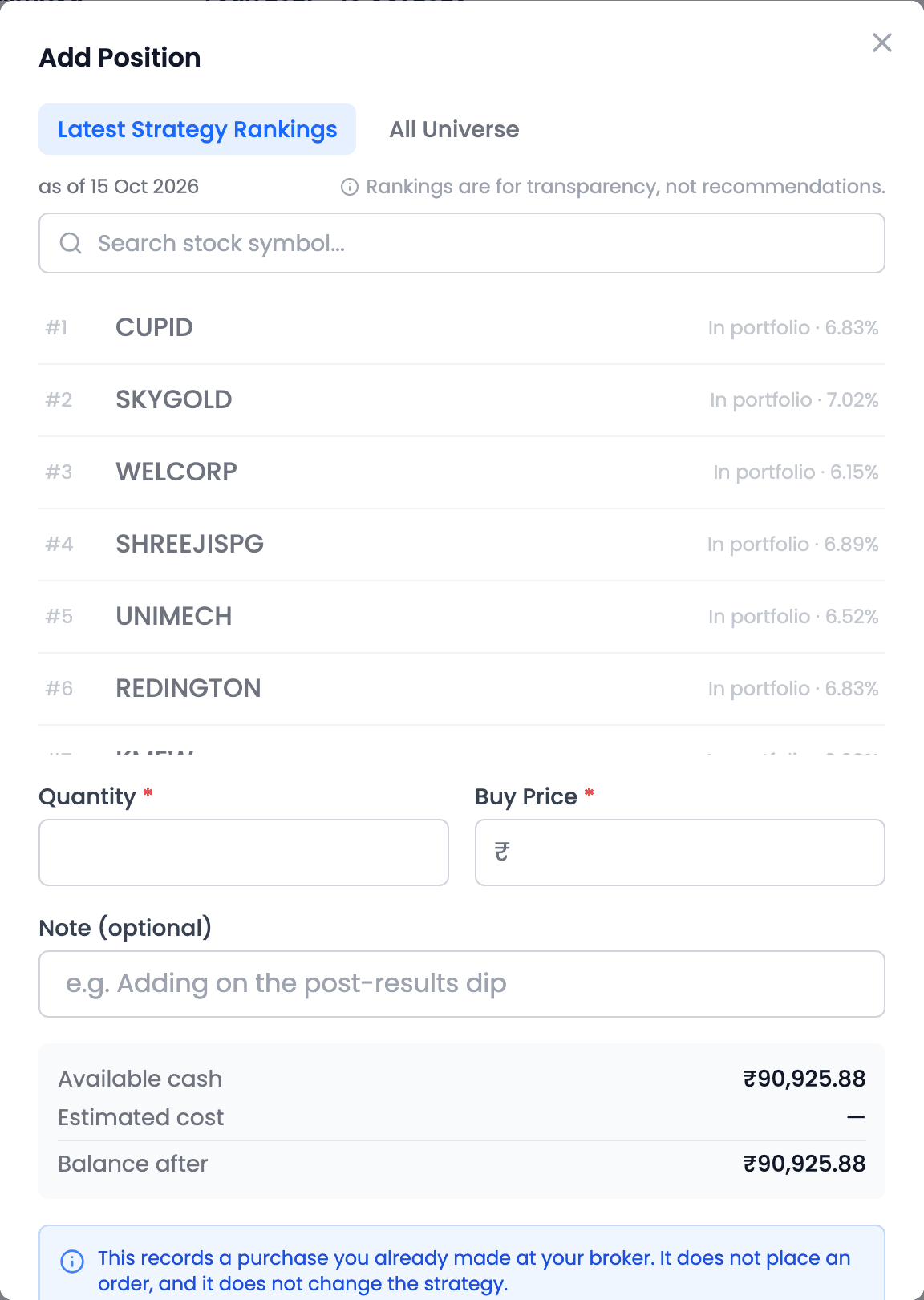
The rankings are there so you can see where a stock stands under your own rules. As the dialog puts it, they are "for transparency, not recommendations".
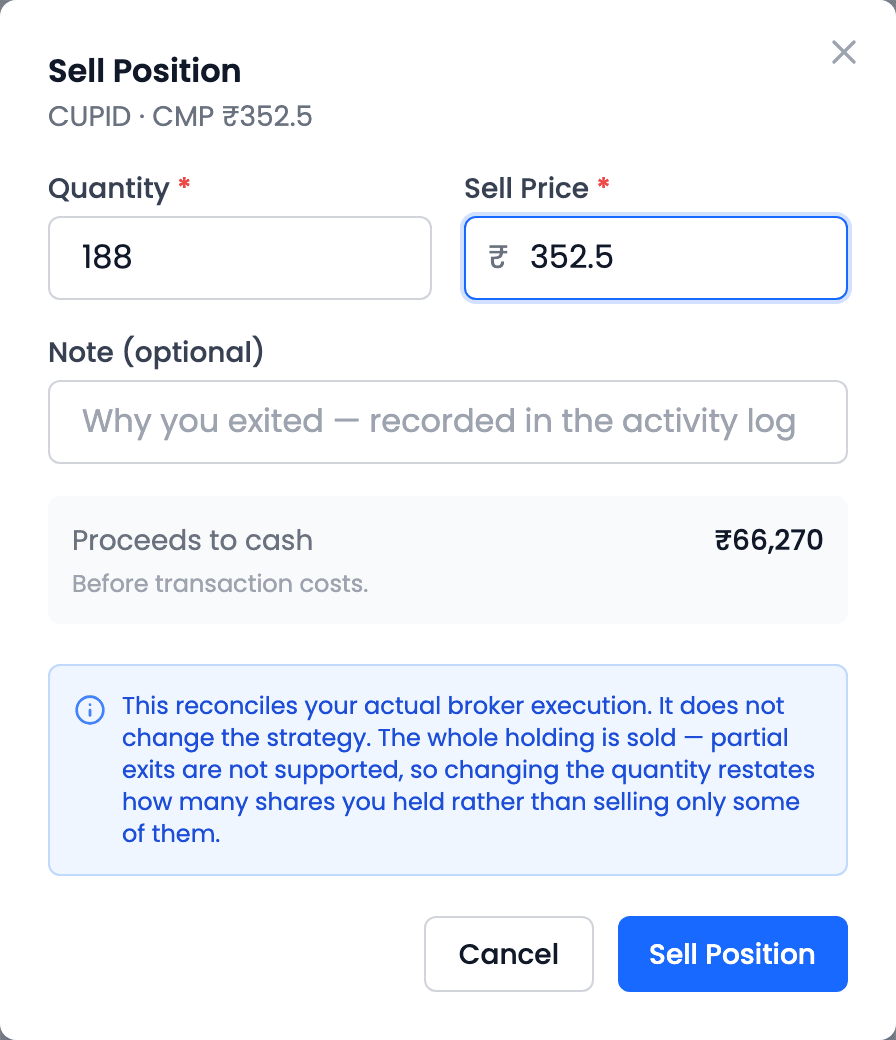
Sell Position records selling the whole holding. Partial sales aren't supported: changing the quantity there restates how many shares you held, rather than selling only some.
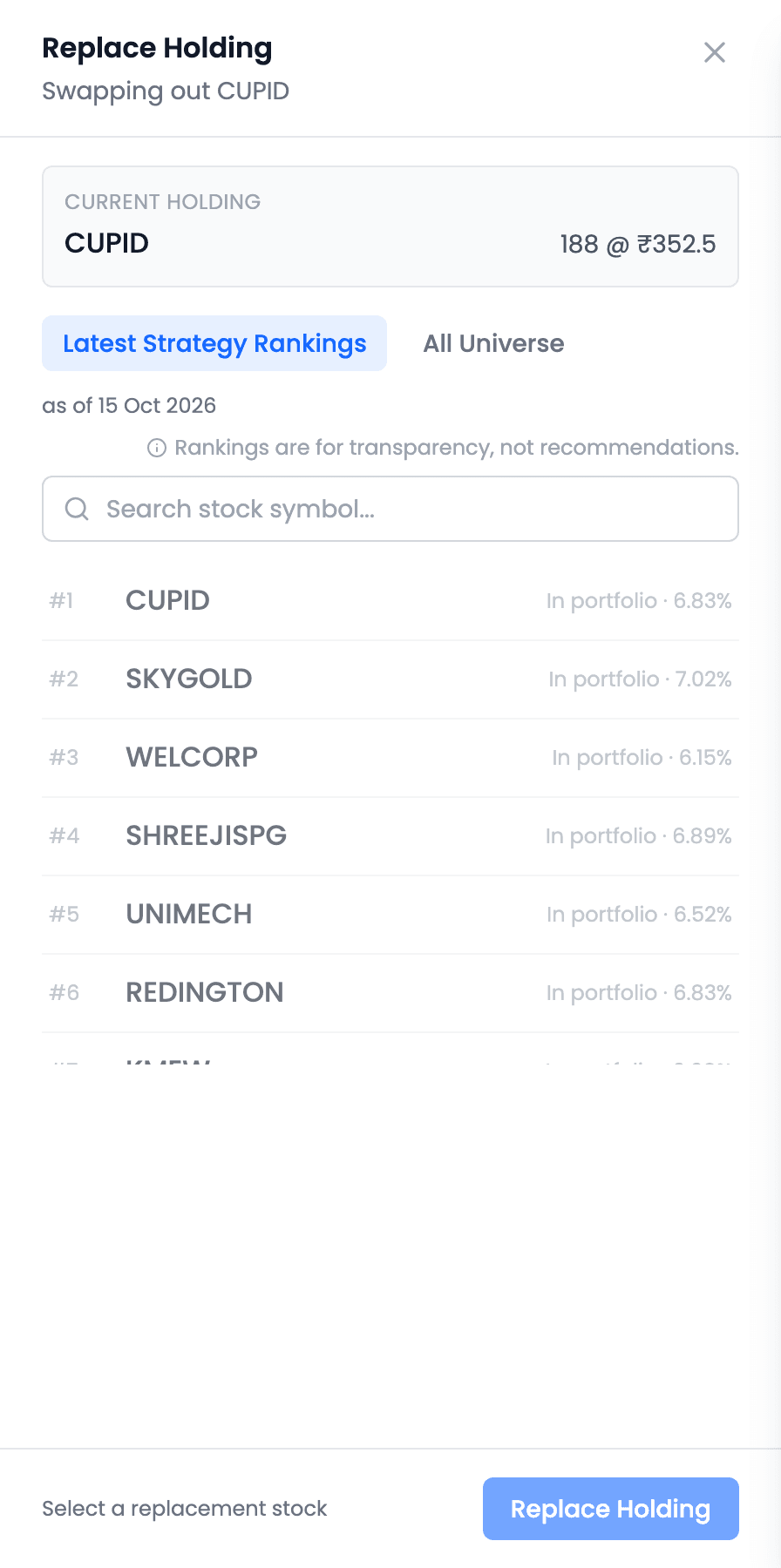
Replace Holding does a sale and a purchase together: it shows the holding being swapped out, then the same rankings to pick its replacement from.
Changing the rules: Edit Settings
Recording trades fixes the record. Changing what the strategy does next is a different tool: Edit Settings, on the Configuration tab.
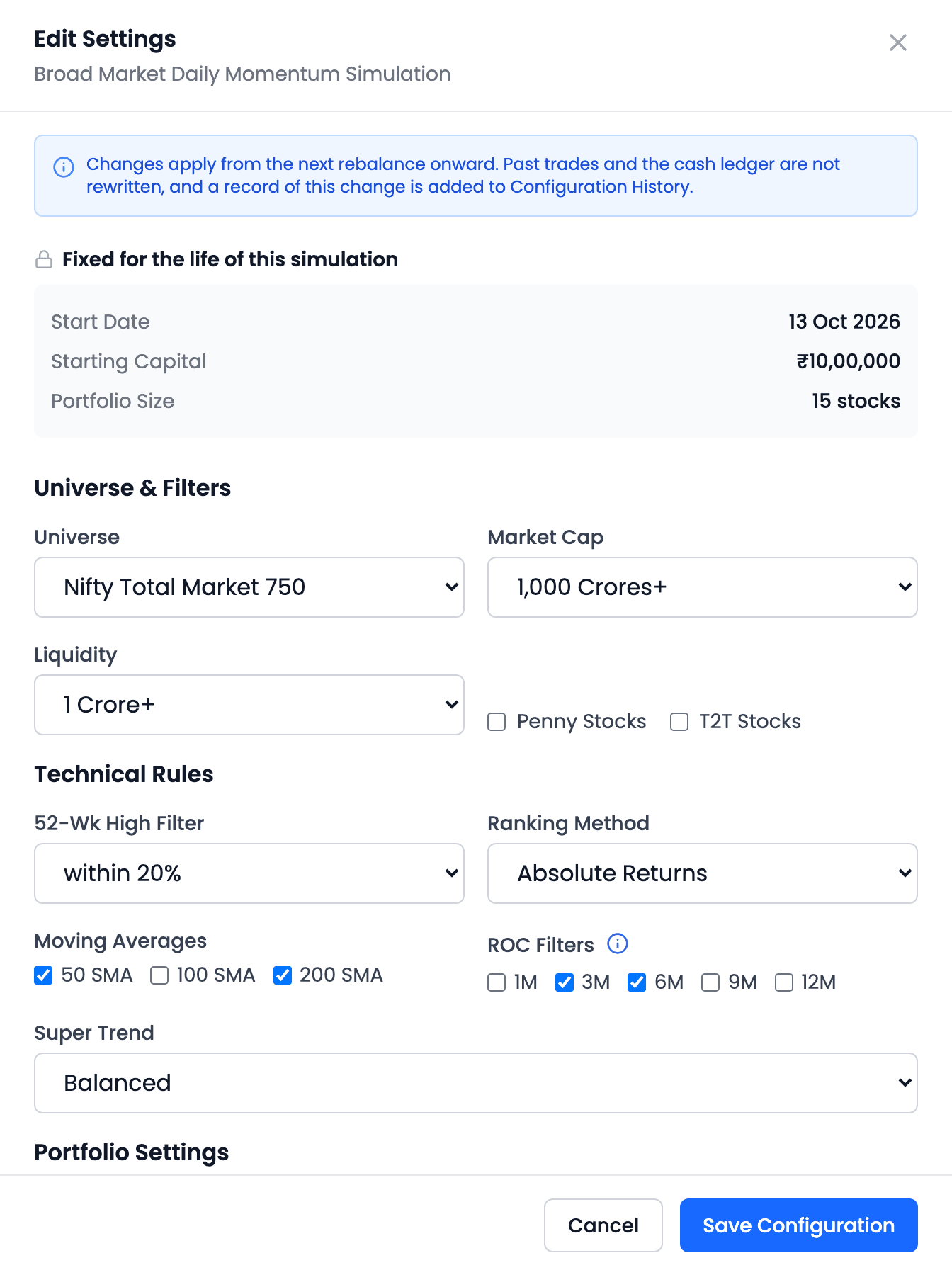
| Fixed for the simulation's life | Editable |
|---|---|
| Start Date · Starting Capital · Portfolio Size | Universe and filters · technical rules · Maximum Rank · rebalance frequency and day or date · Exit Delay · Investment Mode · stop losses · Transaction Cost |
Changes apply from the next rebalance onward. Past trades and the cash ledger aren't rewritten, and every change is listed in Configuration History.
Expected outcome
The simulation now holds what you hold, at the prices you paid. Every later rebalance works from that corrected portfolio, and the record shows plainly which trades were the strategy's and which were yours.
Keep the line between them clear. A strategy-generated trade is the rules at work; a recorded adjustment is you, reporting what happened elsewhere. Record your real trades faithfully, and the simulation stays useful as a companion to your own portfolio. Whatever you do at your broker remains your decision.
Common questions
Does recording a trade place an order?
No. These tools only record what you already did at your broker. NiveshBuddy places no orders, and nothing here changes the strategy.
Can I sell only part of a holding?
No. Sell Position sells the whole holding. Changing the quantity there restates how many shares you held, rather than selling only some of them.
What's the difference between Remove Position and Sell Position?
Sell Position records a sale at your price, with its gain or loss. Remove Position erases a position that was logged by mistake: no sale, and no trade in the log.
Can I adjust a holding from an earlier rebalance?
Yes. Any open position can be adjusted at any time. Adjustments are locked only when the simulation is Stopped or Completed, or while another change is still being applied.
Key takeaways
- These tools record what you actually did at your broker; they place no orders and don't change the strategy.
- Edit Position corrects quantity and average price; correcting the price moves cash by the difference.
- Sell Position sells the whole holding; Replace Holding sells one and buys another in one step.
- Remove Position erases an entry logged in error — it is not a sale.
- Any open position can be adjusted at any time, until the simulation is Stopped or Completed.
- Edit Settings changes the rules from the next rebalance; Start Date, Starting Capital and Portfolio Size stay fixed.